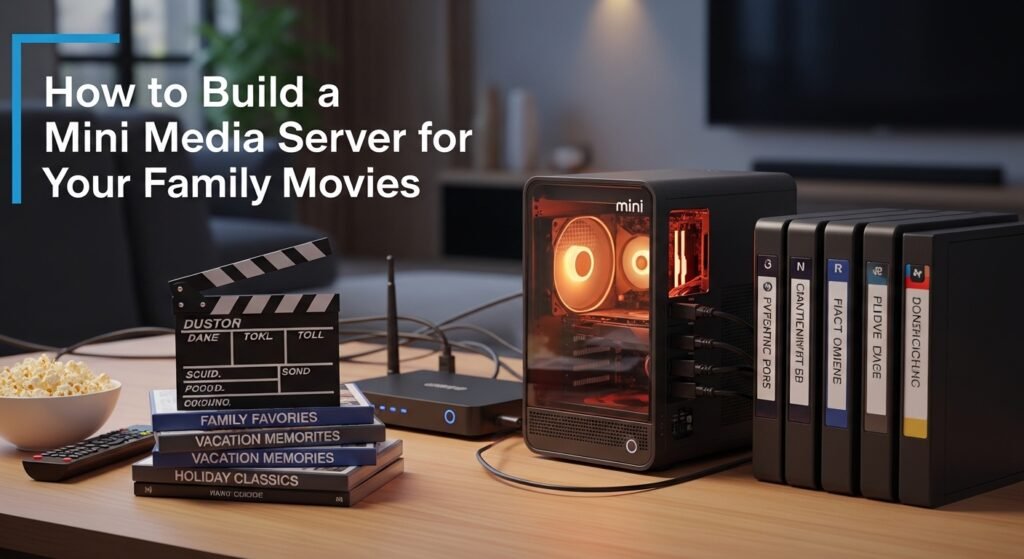
Tidying up piles of DVDs, Blu-rays, or digital films often feels like chasing loose papers in the wind – especially once the stack outgrows its shelf. One person might want tonight’s cartoon on the living room screen while another hunts for an old favorite late at night – it adds strain without structure. Slip a small media server into your setup and suddenly every film lives under one roof, tucked neatly behind one interface. No more hunting through boxes; instead, someone grabs what they need while someone else picks something different – all pulling from the same quiet box humming beside the router. Some versions let you peek inside that collection even if you’re sitting in a coffee shop miles away. Smooth playback lands on phones, TVs, laptops, whatever’s handy, so long as there’s signal and power. It simply sits there, doing the sorting most never get around to finishing by hand.
This guide walks through building a home media server made just for films. Picking the correct gear comes first, followed by setting up the needed programs. One after another, tasks lead toward an orderly movie catalog. Streaming options get adjusted so videos play without hiccups. Each part connects to form a system that runs smoothly over time. Families gain better access to their favorite titles. Over months, the setup stays tidy even as more movies arrive.
Specifically, this guide will help you:
Pick hardware that fits – Different gadgets work for running a server, such as small PCs built just for the task, NAS units linked through your network, or old desktop machines given new life. Since performance matters, we look at how much space it holds, speed of the processor, along with ways it connects online.
A good media server starts with picking one that fits – Plex might suit some, while others lean toward Jellyfin or Emby. Each brings tools to organize your files without extra effort. One after another, movies get sorted, shows grouped, artwork pulled in – all behind the scenes. Browsing feels smooth once everything loads just right. The setup walks you through linking folders so nothing gets missed. Behind it all, details like cast or episode summaries appear like magic. A clean layout helps anyone find what to watch next. First impressions matter, yet these apps stay out of the way until needed.
A fresh start begins with clear names on each file. Because folders sorted by year surprise everyone at movie night. When thumbnails pop up fast, thumbs go up faster. Descriptions tucked inside keep things smooth later. Genres grouped loosely help moods match choices. Ratings added quietly guide without pressure. Cover art appearing right away makes kids eager. Search works better once labels avoid shortcuts. Navigation feels natural when every title fits a place. Family picks flow easier after small steps early.
Start by setting up the server to stream without hiccups across gadgets big and small. Picture crisp playback even when resolution shifts or bandwidth dips. Safety tags along when relatives watch films beyond the home Wi-Fi bubble. Smoothness lives where setup meets smart tweaks behind the scenes.
When this guide wraps up, your house will run a working media hub. It pulls all films into one spot instead of leaving them scattered around. Neatness improves because everything lands in its place. Watching movies becomes easier for everyone at home. Access stays open no matter where someone is nearby.
Why Consider a Mini Media Server?
One small computer can hold every film you own. It sends videos straight to your TV, tablet, phone, or browser without hassle. No need to dig through plastic cases or copy files by hand anymore. Everything lives in one spot now, ready whenever someone wants to watch. This setup does more than just save time – it brings extra tools that make home viewing easier for everyone. What looks basic at first actually changes how households handle movies.
Here’s a closer look at the key benefits of a mini media server:
Centralized Library
A media server keeps every movie in just one spot. No more hunting through multiple gadgets, flash drives, or laptops. Ripped discs, downloaded copies, even converted Blu-rays – all sorted together neatly. Because everything lives in the same system, each gadget on the network pulls from the full collection. Managing what you own gets easier when nothing needs copying onto separate machines.
Family-Friendly Access
One way some systems work is by giving each user a private space. A different list follows every viewer, keeping tracks apart. Picture younger ones getting shows suited to their years, while grown-ups keep thrillers or dramas aside just for them. Preferences stay clear, never tangled. Order comes through separation, not rules. Personal taste finds room without clash.
Seamless Streaming
After loading films onto the system, streaming happens right away across linked gadgets – no copying files by hand. Depending on what screen you’re using and how fast the internet runs, picture clarity shifts smoothly, keeping things sharp whether it’s HD or 4K. Hit pause on the big screen, then later pick up again on a smaller one, like nothing changed.
Automatic Organization and Metadata
A media server works quietly behind the scenes, arranging your files without asking. Posters show up on their own, along with summaries, actor names, directors, scores from critics, sometimes even preview clips. Pages fill out naturally, turning scattered videos into something that feels polished – like what big services offer. Instead of scrolling blindly, you jump straight to films from a certain decade, mood, or creator. Finding Friday night’s watch becomes less guesswork, more precision.
Scalability
One step ahead, a home media server adjusts as your movie library gets bigger. When new films come in, extra hard drives fit right in or swap out older parts for stronger ones. Often, more than one person streams at once – everyone picks their own film on their own screen, no lag, no wait. Built like this, it lasts years instead of fading fast.
Enhanced Family Movie Nights
A single hub for videos means every screen in the house gets what it needs fast. No more searching through cases or plugging in sticks. Choosing a film feels natural when everything shows up at once. Navigation flows like turning pages. Playback keeps up, so laughter doesn’t pause mid-scene.
A small media hub makes handling movies easier, clears out mess both on shelves and online, while offering a smooth way for everyone at home to enjoy films. This setup brings together ease of use, adaptability, and tailored viewing – all through a single organized platform.
Step 1: Selecting the Appropriate Hardware
DIY Media Server Hardware Selection
Picking the right gear kicks off the journey to a solid home media setup – this part matters more than anything else. Newcomers can breathe easy, since flashy gaming machines aren’t required here at all. What counts instead? A smart mix of speed, low power draw, and space for files, shaped by how many films you own. Consider these go-to picks when deciding what to buy
1. Refurbished Computers and Notebooks
Overview:
Old computers can work just fine for new jobs. Most still pack enough speed and space to run several streams at once.
Advantages:
Folks often find these machines just sitting around, waiting to take on a new job. A spare desktop usually turns up where you’d least expect it.
Fits many uses – handles streaming tools such as Plex, Emby, or Jellyfin, while also supporting extras like file changers or grabbers from the web. Sometimes runs one task, often juggles several without slowing down.
Handling more than one stream? It plays HD, sometimes 4K, across many gadgets without skipping. Speed doesn’t drop when five phones grab video at once. Even a tablet watching upstairs stays smooth while the TV runs a movie below. Bandwidth piles up fast – this keeps pace.
Disadvantages:
Most desktops and portable computers take up more space. Tiny alternatives such as single-board units or network storage boxes fit into tighter spots. Size-wise, traditional machines simply spread out where smaller tech tucks away.
Fewer watts saved on older machines adds up when they run nonstop through the week. Power draw climbs just enough to show on the monthly meter.
Recommendation:
A single old computer can do just fine when stretched into something more useful later on. When set up right, it handles streaming without slowing down daily tasks. One big plus? It grows along with what you need – adding parts isn’t hard. Starting out doesn’t have to drain funds if you rethink what’s already sitting around.
2. Single-Board Computers (SBCs)
Overview:
A tiny computer on one board – like the Raspberry Pi 4 or 5 – can power a media server without guzzling electricity. Because it takes up almost no room, folks short on space tend to prefer it. Running nonstop isn’t a problem since its energy needs stay small. Low power draw means less heat, so noise stays near zero. Some choose it simply because it fits neatly behind a TV or tucked away on a shelf.
Advantages:
Small enough to tuck away without fuss. Fits neatly where space is tight, like behind a television.
Running nonstop suits it well because it pulls far less power than a regular desktop computer. A small electrical draw makes constant operation practical without high costs.
Plenty fast for HD: runs 1080p without hiccups across many gadgets.
Disadvantages:
Playback at 4K works fine, though turning those big files into streams for several gadgets might overwhelm basic boards. For steady performance, stronger single-board computers or systems with built-in video help tend to handle it better.
Built for big collections, this setup leans on outside drives. A USB 3.0 stick or a remote folder somewhere on your network does the job. Space runs low fast – plugging in extra storage makes sense. Without it, filling up happens quicker than expected. Movie fans will want something beyond the internal box.
Recommendation:
A tiny computer at home can handle high-definition videos just fine, especially if it does not need much space for files. When more movies or music show up, linking an external drive through fast USB ports makes sense. Storage tucked away on another device across the network helps too.
3. Network Attached Storage Devices
Overview:
A box under the desk hums quietly – machines like Synology or QNAP run on their own, storing files while streaming music or videos. These gadgets pack hard drives, brains, and internet links together without needing extra parts. Setup takes little thought once plugged in. Homes with several users find them handy, almost invisible until called upon.
Advantages:
Out of the box, many NAS units work right away. Streaming gets handled through built-in software that arrives already installed.
Need more space? This system fits several hard drives, even set up in RAID groups, so adding later feels natural. It grows as you do.
Some NAS devices come ready with built-in software like Plex or Jellyfin for streaming your files at home. A few brands pack their own versions too – right from the start.
Disadvantages:
Spending more at first stands out when choosing a NAS. These units usually carry a heavier price tag compared to old computers reused for storage tasks. Machines built with room for several drives tend to climb in cost. Even those packing quicker chips add up fast. Speedier performance often means opening your wallet wider.
Recommendation:
Folks after a dependable machine that works right out of the box often find NAS fits just fine. When homes store tons of films and stream them while others watch too, these systems tend to handle it well.
💡 Professional Tip:
A solid streaming experience with HD or 4K on several gadgets needs a device powered by no less than a four-core processor, alongside 4 to 8 gigabytes of memory. When it includes tech like Intel Quick Sync or NVIDIA NVENC, handling high-resolution files gets easier – buffering fades, motion stays fluid, every screen keeps up without hiccups.
Step 2: Selecting Media Server Software
Selecting Software for a Home Media Server
After setting up your equipment, pick a media server program that handles, sorts, and plays back your film collection. A good choice turns scattered video files into something smooth and simple to navigate – think clear menus, thumbnails, actor details, plus automatic subtitles without extra work. Different options exist, each working better in certain situations, offering unique benefits depending on what you need
1. Plex
Overview:
From your living room to anywhere online, Plex brings movies forward in a clean layout. Its reach stretches across many devices, making playback smooth without extra steps. A personal archive transforms under its design, showing covers like shelves you might walk past. Easy access stays central, whether nearby or far off.
Key Features:
Navigation feels natural, even for those who aren’t tech-savvy. Getting around takes little effort, thanks to clear layout choices. Older relatives pick it up fast – no confusion slows them down. Simplicity guides every screen design. Familiar icons help, since they match what people already know. Even first-time users move smoothly from one step to the next.
Filming on a screen far away works if the web is live. Wherever you sit, playback follows through wires in the air.
A machine grabs show details without anyone needing to ask. Posters appear on their own, pulled from online spots. Information about actors shows up neatly below each title. Descriptions write themselves based on what’s available elsewhere. Ratings flow in from viewer feedback across platforms. Trailers link automatically when they are found nearby.
Pros:
Finding its way onto most gadgets – smart TVs see it just fine, so do tablets. Phones run it without trouble, while web browsers pick it up smoothly instead. A rare few might resist, yet the rest welcome it easily.
Each person can have their own profile, along with saved shows to track. Settings let parents manage what younger viewers access.
Apps plug in easily, opening more ways to work. A solid network grows around each tool. Features expand without hassle, thanks to shared builds. Extras arrive through add-ons that fit right in. Power comes alive when pieces connect on their own.
Cons:
Plex Pass unlocks extras such as real-time television, recorded shows on demand, or smoother 4K playback using device power. A membership makes those tools available.
A bit more demanding on system power than simpler options such as Jellyfin. Heavy loads creep in where lighter tools glide through.
Best For:
Folks new to streaming, or parents wanting something straightforward, might prefer a system that works right away without much tinkering. Yet it still looks sharp and runs smoothly once live. Setup takes little effort, leaving more time to focus on the broadcast itself. The whole process feels clean, almost effortless, even for those who aren’t tech-savvy.
2. Jellyfin
Overview:
Running Jellyfin means owning your media setup without paying fees. This software bends to how you want it, fitting everything from tiny boards to bulky storage boxes. Built by contributors worldwide, its freedom shows in every tweakable setting. Hardware limits fade here – old machines, new rigs, all find purpose.
Key Features:
Open code, every part free – no hidden costs, never locked behind payments.
One person can log in while others set up alerts at the same time. Alerts track items someone cares about without mixing them together. Items inside get sorted so each group stays separate by choice.
Fine on weak hardware thanks to low weight and smart design. Still runs smooth where others choke.
Pros:
Free without any extra charges. Costs stay zero all through.
From time to time, folks keep building tools that add new functions. Help shows up when things go sideways. Updates roll in without long waits. People trade fixes like notes passed in class.
What stands out is how freely you can adjust settings to match your household’s rhythm. Each part of the system bends easily, fitting around your daily patterns instead of forcing change. Personal touches come through clearly, shaping both look and function just right.
Cons:
Not quite as smooth or easy to use as Plex, the layout feels a bit rougher around the edges.
Few high-level options – say, arranging distant streams – could need a bit of tech skill to handle.
Best For:
People looking for a totally open media setup might enjoy full command of their system. Those okay with setting things up by hand often find they like the freedom. A hands-on approach lets them shape everything exactly how they prefer it.
3. Emby
Overview:
Sometimes Emby feels just right – not too loose, not too rigid – sitting comfortably where Plex pushes limits and Jellyfin stays free. A clean look comes standard, yet you can still dig into details like show descriptions if you want. Tweak how things appear using add-ons that change behavior or visuals. Streaming works across different screens without needing perfect sync. Options open up once you start exploring settings others keep hidden.
Key Features:
Finding movie details happens on its own, then sorts them neatly. Files get named by what the system pulls in without asking.
Watching on different screens works through separate accounts. Each profile sets its own limits, especially for younger viewers. Controls help manage what shows up based on age rules.
A few extra tools come built in, like access to song collections or adding subtitle files. Some outside apps can connect too, slipping into the system without hassle.
Pros:
Flexes better than Plex without making things harder to navigate. A smooth setup keeps it simple even when options grow.
Perfect when you’re comfortable tinkering but prefer skipping full code control.
With the right equipment, streaming live television works. Recording shows becomes possible through DVR functions tied to that setup.
Cons:
Access to certain high-end tools comes with an Emby Premiere membership. A few extra functions open up only when you subscribe. Features beyond the basics show up once you’re signed up. Full use of select options needs a paid plan in place.
Finding your way around takes a bit longer compared to Plex, particularly when setting up access from afar.
Best For:
People looking for both control and ease of use might find this fits well. Those okay with spending a bit of time setting things up will get extra tools along the way. A middle ground where flexibility meets function without needing expert skills shows through here.
💡 Professional Tip:
One thing happens when you load files into Plex, Jellyfin, or Embody – they sort everything without help. Posters appear out of nowhere. Cast details show up alongside scores from critics. Subtitles drop in place once found online. A clean look follows, neat enough for anyone to browse. Every screen handles it the same way, phone or tablet or TV. Picture kids picking shows safely because limits are set ahead of time. Profiles track who likes what. Lists hold saved picks until later. Controls block mature scenes by design. That quiet order makes sharing easier at home.
Step 3: Organizing Your Movie Library
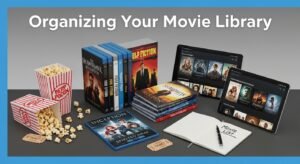
Keep Your Movie Collection Tidy for Smooth Viewing
Getting movies ready right helps them play without hiccups during weekend watch time. Since media tools such as Plex, Jellyfin, or Emby need tidy names and folders, things like artwork and actor details show up properly. When files are messy, though, the system might grab wrong covers or skip a film entirely. Even worse, some titles could refuse to load when picked from the menu. Clean layout means fewer glitches – that matters most once the lights go down.
Here’s how to set up your library effectively:
Recommended Folder Structure
Picture a stack of films sorted by type – it just clicks when you’ve got loads to pick from. One way people arrange them? Something like what follows
Movies
- Action ( Die_Hard_(1988).mp4 )
- Comedy ( Home_Alone_(1990).mp4 )
- Family ( The_Lion_King_(1994).mp4 )
Explanation:
A place where every movie lives together inside one folder. Each film finds its spot right here, grouped under a single roof.
Picture folders labeled Action, Comedy, Family – neat spots for each kind of story. These little sections make it easier when someone wants a specific type of movie. Picking what to watch becomes simpler with everything sorted ahead of time.
Title your movie files with the film name followed by its year in brackets. That way, programs sorting media will know which is which – like Die Hard (1988) apart from Die Hard 2 (1990). Without that number, confusion creeps in easily. Matching titles get mixed up unless you mark them clearly. The system relies on those details to organize correctly. Brackets help separate facts from names without cluttering. Years act like labels guiding software where to place each one. So include them every time a title could overlap another. It just works better when everything has space to breathe. Clarity comes through small choices made consistently.
File Naming Best Practices
Include the release year:
Put the year in brackets right after the name. That helps media systems find the exact film they need. Like this: The_Lion_King_(1994).mp4.
Separate movies by genre or category:
Finding things gets easier when movies are sorted by type – like Action, Comedy, or Sci-Fi. Because of that setup, the system can build custom screens for each category.
Avoid blank areas when using Linux-style setups. Though some might overlook this, gaps cause issues there
Filenames with spaces might trip things up when using Linux or a similar NAS setup. Try swapping them out for underscores _ or maybe hyphens -. Picture something like Home_Alone_(1990).mp4 as a safer bet.
Use standardized file formats:
Most media servers handle MP4 or MKV without issue. Because these types work across many apps and gadgets, picking them makes playback smoother. Quality stays strong, even when files move between systems.
Maybe add extra details if needed
Try including things like resolution or version right in the file name if you want more control over how it’s sorted
Maybe Inception from 2010 in full HD, maybe the extended cut of Lord of the Rings: Fellowship with the year tagged right after. Either one shows how labels make it easier to tell which version is which when looking closely.
How Things Stay Clear When Kept in Order
Picture this – a media server grabs correct posters, story outlines, actor names, because file titles follow clear patterns. Missing that order? Expect blank images or wrong details hanging around your collection.
Finding films gets simpler when sorting by type, date, or name instead of wading through cluttered rows. A clearer layout helps everyone pick something faster.
Playback stays steady on any screen. When files follow a set format and name pattern, hiccups fade out – this matters most if you switch between gadgets often.
One reason it works so well? Growth doesn’t mean mess. Toss a new movie into the right folder, stick to the name pattern, that’s all. Built to handle more, quietly. Same rule every time keeps things clean, even when the list gets long.
💡 Pro Tip:
When dealing with huge libraries, try tools such as FileBot or TinyMediaManager to handle renaming and sorting films based on common rules. Hours vanish from the task because automation takes over what would otherwise be done by hand. Uniformity sticks through every item once the system runs its course.
Step 4: Network Configuration
Watch home movies on your server from nearby or far away
After getting your media server running and arranging your movies, open access to it. A strong point? Streaming works inside your house through Wi-Fi or even from outside later on. That way everyone at home can watch what they want, anytime.
1. Local Streaming
Your media server can be reached inside the house when gadgets link through Wi-Fi or a cable connection. This kind of setup lets you pull up videos, music, or photos without going online.
Setup Steps:
Starting with a wired link means fewer hiccups during playback. A steady signal comes from plugging the server straight into the router. That cable connection handles heavy data better. Streaming sharp video runs smoother when tied by Ethernet. Fewer pauses happen that way.
A solid wireless signal might do the job when cables aren’t possible. Distance weakens it. Walls or appliances often get in the way. Too many devices online at once slows things down too.
Some media servers notice gadgets nearby without any setup needed. A TV might show up on Plex when linked to the same internet. Jellyfin spots phones or tablets once they’re online together. Emby picks up players or streamers if they share a connection. These systems find hardware just by being near each other.
Finding a way into the system happens fast – smart TVs get there just as quick as tablets. A smartphone slips in right after it powers up. Once live, the machine welcomes each device without delay. Computers join the flow smoothly, no waiting required.
Local Streaming Advantages
Smooth, fast streaming works best with high-definition and ultra-high-definition videos. Because every frame needs to load quickly without delays.
When the web goes out, playback keeps going. Even without a signal, content still loads. Connection drops? The stream stays up. Offline mode means no interruptions. No need for constant Wi-Fi. It runs on local access only. Internet cuts off – things continue anyway.
One person might start a film here, someone else picks a show there – each using their own screen at once. A household shares access without waiting turns. Screens light up in different rooms, each playing something unique. This setup keeps everyone watching what they want.
2. Remote Access
Out there beyond the living room – maybe while visiting someone else’s place, traveling somewhere new, or sitting at an office desk – people can still reach their media collection. With tools including Plex or Emby, logging in safely from afar usually takes just a few setup steps.
Setup Tips:
Start by turning on remote access inside your server app. Usually, these systems walk you step by step toward linking the server with your router so outsiders can reach it.
A locked door starts with a solid key – choose passwords that hold firm. User safety grows when login details stay out of reach. Tough codes block shortcuts for outsiders trying to slip in.Beyond basic setup, think about extra protection. HTTPS means safer links through encryption. Streaming gets a shield when data travels locked down.When you connect through a VPN, it creates a protected path into your home system – ideal if security matters most. Sometimes that extra layer makes all the difference for private configurations.
Beyond basic setup, think about extra protection. HTTPS means safer links through encryption. Streaming gets a shield when data travels locked down.
When you connect through a VPN, it creates a protected path into your home system – ideal if security matters most. Sometimes that extra layer makes all the difference for private configurations.
Remote Access Advantages
Watch every film you own, no matter where you are. Wherever you go, your collection follows – right in your pocket. A click opens access across borders. Home videos? Classics? Even that obscure documentary – available instantly.
One home, another home – both tuning in at once. People living apart still share the screen together. Streaming splits paths but keeps watching whole. Separate roofs, single feed. Distance stays, yet viewing doesn’t wait. Rooms far apart light up with the same show.
Video streams can shift quality mid-playback when certain systems tweak the resolution. Connection hiccups? The system adapts by serving lighter versions of the clip. Smooth viewing stays intact because adjustments happen on the fly. Bandwidth dips trigger lower-grade outputs automatically. This dance between device and server keeps interruptions minimal.
Professional Tip:
When more people or gadgets share a home network, how well it runs really matters. Think: stability over speed, consistency above peaks
Wired links work best when steady speeds matter most. Where cables fit, they beat wireless every time.
Thick walls slow down signals, yet some systems push through anyway. Floors stacked high need more than one box spreading coverage evenly across spaces. A single router fails where several working together succeed quietly behind the scenes.
Films load smoothly in sharp detail when links between devices stay strong. Picture stays clear even if more than one show runs at once. Solid signal means no pauses during playback.
💡 Extra Tip:
Using a mix of on-site tools alongside cloud services might work well. One option involves running software locally while also sending data far away. Some people link home systems with online platforms this way. Another path connects nearby devices plus external networks at once. This method often pairs internal processing with outside delivery streams
Wired connections tend to hold steady when things get busy. A single cable links the machine directly, skipping wireless hiccups. Stability shows up most during heavy tasks. The main box stays online without surprise drops. Physical lines just handle load better.
Floating signals through walls becomes easier when linking rooms with mesh networks or wiring tricks. Where cords won’t reach, invisible bridges form between outlets and airwaves. Devices settle into corners once too far, now humming along without hiccups. Distance fades as a problem when connections weave through ceilings and floors. A bedroom shelf, a basement desk – each finds steady contact without fuss.
When bandwidth dips, the system shifts 4K streams into lighter versions. It happens without asking, adjusting quality based on connection speed. Remote viewers get smoother playback, even on tight networks. The machine handles conversions quietly in the background. Settings change on their own when needed. No manual tweaks required as conditions shift. Processing adapts before hiccups appear.
Step 5: Adding Users and Devices
Multiple Profiles for Family Media Server
What stands out about today’s media server programs? They handle more than one user profile. Families find this useful. Each person gets their own space for watching things. No stepping on anyone else’s list of what they’ve seen. Preferences stay separate. One sibling’s cartoon binge won’t mess up dad’s documentary progress. Settings stick without needing fixes every time someone new logs in. It just works – quietly.
1. Individual Profiles
How it works:
A single profile fits each person in the home, built right into the system. One user, one setup, all separate. Nobody shares settings or picks up where another left off. Individual choices stay put, tied to just them. Logins keep things personal without mixing anything up. Everyone gets space of their own inside the machine.
One user’s viewing picks won’t shape another’s suggestions. Each profile keeps track on its own, so paused shows stay put without mixing across accounts.
Favorites by genre come together when users build their own viewing lists. Younger audiences stay guided because parents set limits that fit their needs. Personal picks grow as choices get saved over time.
Benefits for families:
Young ones see just what fits their years.
One way to keep things clear is by separating viewing habits across a shared account. Watching choices stay personal, even when profiles overlap at home. Each person sees only what matters to them, nothing more gets in the way. Preferences remain private, updates arrive clean of others’ picks.
Picking what to watch feels easier when suggestions match your taste. A smoother journey through choices begins with tailored picks showing up first.
2. Media Server Setup Across Several Devices
Whatever device you prefer, your home movie library stays within reach. From phones to smart TVs, playback just works – thanks to broad support across current software setups
Big-screen fun comes alive when streaming hits play through built-in apps from makers such as Samsung or LG, even Sony joining in. A movie loads fast without extra gadgets nearby.
Your collection stays within reach, whether you’re using an iPhone or a Samsung Galaxy. From the couch or across town, open it up through familiar apps. Running iOS? It works just fine. What about older Android versions? Supported too. Jump in during lunch, late night, even offline. Sync picks up where you left off – no fuss. Home screen looks clean, feels natural either way. Touch controls respond like they should. No extra steps needed.
Out of the box, Roku works just like Fire TV when it comes to streaming straight to your screen. Apple TV fits right into that group too, pulling content smoothly. Then there is Chromecast – small but strong in what it handles. Nvidia Shield also steps up, matching them feature for feature. None of these need a full computer hooked up nearby.
Families find it easier when the app lives on more than one screen at home. Each person picks their gadget of choice, yet never needs to log in again. One install per device means no passing around usernames or hunting down downloads. Watching starts fast because favorites stay put, right where they were left. Different screens, same smooth play – everyone just taps and goes.
3. Synchronized Content Across Devices
With profiles ready, plus gadgets linked, the media server moves files into sync on its own. Devices join the network; after that step, everything lines up without extra steps. Setup done, syncing kicks in – content shifts smoothly behind the scenes. After signing in and pairing tools, updates flow by themselves across screens. Profiles active, hardware talking, then the system swaps material quietly. Login complete, connections made – the moment arrives when data travels alone
Right now, whatever gets watched shows up everywhere at once. Say a kid hits pause on their tablet during a film – later, picking it up on the living room TV works without losing ground.
Fresh picks hit the shelves fast – everyone sees them right away. A new film rolls in? It shows up without delay. Updated details appear just as quickly. No waiting needed.
One screen or another, suggestions made stay just right where they left off. Each person sees their own picks exactly as saved. What shows up on the phone pops up the same on the tablet. No hiccups when switching spots. Family members pick up without skipping ahead.
Benefits:
One version stays clear when others mix up movie files or play positions.
Fewer headaches trying to remember who saw which part. Watching progress sorts itself out behind the scenes, mostly without asking. What sticks is less guesswork about viewer habits piling up over time.
Folks spread across the house still share the same film at once, each glued to their own screen. One person might be curled up upstairs while another lounges downstairs – same story, separate spots. Screens light up in bedrooms, kitchens, sometimes even the garage. The plot rolls forward no matter where someone sits. Distance between viewers doesn’t break the moment. Everyone laughs when the joke lands, gasps at the twist – all without syncing remotes. It just works, quietly, like it was meant to.
💡 Professional Tip:
Families juggling lots of gadgets need gear that keeps up – server power and internet speed must match heavy demand, particularly with HD or 4K video rolling. Streaming stays steady when the central machine plugs into Ethernet while a robust mesh Wi-Fi system covers the rest. Even during peak household usage, hiccups fade if connections stay solid on both fronts.
Step 6: Optional Enhancements
Mini Media Server How It Works
After getting your home movie server running, try adding extra touches that boost speed, keep files safe, maybe even impress the kids. A few smart tweaks turn it into more than a digital closet – suddenly it streams like something out of a theater. Smooth playback, fewer hiccups, better access across devices happens when small upgrades add up quietly behind the scenes.
1. Transcoding
What it is:
When your media server changes video quality on its own, that’s transcoding. It adapts the stream depending on what device you’re using or how fast your connection happens to be right then. Example:
A single 4K film might shrink down smoothly to fit older screens like 1080p or even smaller at 720p. Devices such as tablets or phones handle these lower sizes without trouble. The shift happens quietly behind the scenes. Quality shifts, yet stays clear enough. Each step down opens wider access.
Fighting through spotty signals? Smaller video chunks help avoid pauses. Glitches fade when data loads ahead of playtime.
Benefits:
Fine movement on every screen, keeps going strong whether it’s an old television or a phone. Works just right without slowing down.
Fine-tuned data flow keeps remote streams running without hogging network space.
One person can stream a film while another picks something else, all without slowing down the internet. Each viewer gets their own screen time, thanks to balanced data flow behind the scenes.
Considerations:
When handling several video feeds or sharp formats such as 4K HDR films, transcoding leans heavily on stronger processor power. Because of this demand, weaker CPUs often struggle under load during complex conversions.
ans of smooth playback might notice their media server leaning on parts inside the graphics chip instead of just the main processor. Tools such as Intel Quick Sync, NVENC from NVIDIA, or AMD’s own version help shift heavy lifting away from the central brain of the machine. When Plex or Emby get going, they tap into these built-in helpers to handle format changes more easily. That means less strain when streaming something not ready to play right away. Performance feels lighter, somehow steadier during busy moments.
2. Backups
Why it matters:
Movies you love – maybe ones passed down or hard to find – sit safely when copied elsewhere. Losing them to broken devices, mistakes, or glitches becomes less likely once they’re stored apart.
Best Practices:
Use external hard drives or network-attached storage (NAS) as a secondary backup location.
Floating your files into the cloud adds a quiet layer of backup beyond local drives. A distant digital copy stays safe when physical devices fail.
When possible, set up timed copies of your data using built-in tools. Automatic saves happen on their own when the system allows them. Consistent timing helps avoid missing updates. Some programs handle this without extra steps. Check settings to see if the feature runs in the background.
Benefits:
Faulty hardware? Your holiday clips stay protected regardless. Server crashes overnight? The backup keeps every moment intact. Power cuts out mid-sync? Copies exist beyond the primary machine.
Finding comfort in the quiet knowledge that every book remains safe. What matters most stays untouched by sudden accidents or errors. A steady guard keeps watch without needing praise or notice.
3. Subtitles and Metadata
What it is:
Subtitles and metadata are key to enhancing usability and accessibility:
When movies are in another tongue, words at the bottom help keep up. For those who can’t catch every sound, written lines make scenes clear. Some versions of a film just include them because they fit. They show what’s said without needing ears.
Posters show up alongside details like plot summaries, who starred in the films, who directed them, when they came out, how people rated them, along with what kinds of stories they tell.
Benefits:
Who knew a clean layout could make files feel so sharp. A tidy screen just works better, somehow. Looks matter more than you’d guess when folders line up right.
Genre, actor, or release year – each one shapes how you move through titles. Finding films gets easier when paths split by these choices. One click pulls up matches without clutter. A filter here, a dropdown there – they work quietly. Results show fast, shaped by what matters most to viewing habits.
Everyone in the family finds it easier to reach, simpler to use. A smoother experience spreads through daily moments.
Implementation Tips:
A few seconds after you add a file, details like titles or episode names appear by themselves. Information arrives from web sources without asking. Subtitle files show up alongside the video most times. Getting these extras happens in the background quietly. Files gain descriptions while you do nothing. Hidden processes grab what is needed from remote spots.
When it comes to uncommon or unique films, try slipping in subtitles by hand using common types such as .srt or .ass.
Filenames that stay uniform help the system pair subs with the right film. A steady label pattern means less confusion for playback matching.
💡 Professional Tip:
For the best overall experience:
Enable hardware-accelerated transcoding if you plan to stream multiple HD or 4K movies simultaneously.
Start fresh each time by backing up files often, while tagging them clearly so your movie collection stays neat. A tidy system runs without hiccups when details like subtitles are handled early. Keep things running smoothly through small steps taken regularly. Order emerges when structure follows habit.
A steady stream keeps videos playing without hiccups, while clear visuals give a polished look. Protection kicks in over time, shielding home films from wear. Each viewing stays sharp, thanks to careful handling behind the scenes.
.
Step 7: Maintenance and Best Practices
Maintaining Your Home Movie Server
Starting small with a media server isn’t the finish line. Over time, steady checkups make a difference – preventing hiccups during playback, keeping files in order, shielding against risks. Fresh content stays easy to find when routines are followed. Security holds strong. Storage avoids clutter. Smooth runs depend on these quiet efforts behind the scenes.
1. Frequently Check for Recently Added Films
Why it matters:
Every time you add another DVD or Blu-ray, the files on your system start lagging behind. When the collection grows, the media app needs exact details to pull up artwork, summaries, and titles without hiccups during use.
Best Practices:
When fresh files show up, many media servers like Plex or Jellyfin update libraries without being told. Libraries refresh themselves the moment something new lands in the folder.
Once every week or so, take time to scan manually. That way, fresh films show up without delay. Every now and then, run it again – keeps things current. Fresh titles land where they should when you do. A regular check keeps the list from falling behind.
A fresh batch of films might need a short stay in an “Incoming” spot first. Before settling into genres, they wait there. Big libraries benefit when items pass through this holding area. One step at a time keeps clutter out of main sections.
Benefits:
Freshens your collection automatically, so you never have to lift a finger.
Makes sure each fresh title gets its info and images without manual steps. By itself, it attaches details and visuals to every upcoming entry.
One fewer mix-up on your system means less chaos down the line. Files show up only once when they should. Missing pieces tend to stay put instead of vanishing mid-task. Order creeps in where errors used to thrive.
2. Update Software Periodically
Why it matters:
Updates often arrive for media server programs, keeping things running smoothly by squashing glitches. Security holes get sealed before trouble finds them. New tools show up now and then too. Old versions tend to stumble – freezing or refusing to play files. Remote access makes weak spots even more inviting to intruders.
Best Practices:
Now and then, peek into your server app to see what’s new – or just flip on auto-updates when it allows. Updates might wait unless you look, yet some systems handle them silently once turned on.
Start fresh with the server upgrade, then move to gadgets like smart televisions or tablets. Fix one piece at a time – streaming boxes included. Refresh each app that links back to the system. Try beginning with older models first; they often need it most. Work through them without skipping steps. Finish when every screen runs the latest version.
Staying up to date on OS updates helps protect whatever machine runs your server – be it a desktop, network drive, or small board device. When one part gets fixed, everything tied to it stays safer longer.
Benefits:
Fewer glitches pop up during playback. Problems happen less often when things run smoothly.
Enhances security for remote streaming.
Jumping into newer tools means smoother file conversions, smarter media sorting, better layout tweaks. Getting ahead often comes from how things look now, not later. Updates roll through visuals first, then deeper fixes follow behind quietly.
3. Monitor Storage Capacity
Why it matters:
Heavy movie files, think HD or 4K, eat up plenty of room on a drive. When space runs low, the system might slow down – adding more films could stop altogether.
Best Practices:
Now here’s space left on your server? Peek at it often. Drives hooked up too – don’t forget those. Watch them just like you watch the main box. Sometimes things pile up without telling you. A quick look now saves trouble later. Not magic, just habit.
Need more space? Swap in bigger hard drives or toss an extra one in there when storage runs short.
When setting up a NAS, using RAID can help mix space efficiency with safer file backups. Instead of just stacking drives, spreading data across them protects against failures while keeping usable capacity high.
Benefits:
Streaming never stops, while fresh films arrive without pause.
When the server runs smoothly, it avoids issues tied to full storage. Full disks can cause problems, yet steady upkeep keeps things working right.
4. Digitizing Older DVDs and Blu-rays
Why it matters:
Older movie discs sit around in many homes, slowly wearing out from scratches or just getting lost. Turning those films into digital files means they can live safely online, joining your collection on a home server without hassle.
Tools and Tips:
A fresh start comes with HandBrake – turning DVD or Blu-ray clips into sharp MP4s, MKVs without cost. Quality stays strong through the shift from disc to file. This one runs free, yet handles tough jobs smoothly. Digital copies rise from old discs, frame by frame. No price tag slows it down.
Start with clear labels, add subtitles along the way, then name each file using a consistent format so servers can take them without issues.
Films turned into digital files can live on outside hard disks or sit inside the primary storage hub. Access stays smooth when everything gathers in one spot.
Benefits:
Old films stay safe through digital care instead of disc storage.
A bigger collection fits neatly into your space. Storage grows while staying tidy.
Streaming works everywhere you go, thanks to smart tagging that finds titles fast. Subtitles show up without asking, fitting screens big and small by design.
💡 Professional Tip:
Start fresh every few weeks by checking what movies are already on file. When new versions show up for apps or systems, swap them in right away. Watch how much room is left so things do not pile up too high. Turn physical discs into digital copies before they get scratched or lost. Doing these steps together keeps playback steady without hiccups. Files stay where they should be, easy to find later. Old favorites stick around for years because care goes into upkeep early.
Conclusion
Mini media server for family movies
One way to handle your home movie collection? Set up a small media server. It works well, plus it feels good when done right. Pick equipment that fits what you need instead of chasing specs. Software matters just as much – go with something stable, easy to update. Organization keeps things running smooth later on. A clear structure means anyone in the house finds films fast. Streaming becomes part of daily life, not a hassle. Everyone gets access without confusion. Simplicity here brings real results over time.
Home Media Server Advantages
Efficient Organization
One spot holds every film you own, so there is no hunting through piles of discs or lost downloads. Because names stay uniform, folders follow a pattern, also software fills in details automatically, everything looks clean, simple to move through. Picking something to watch gets quicker when kids or adults search by type, release date, maybe who stars in it.
Reliable Streaming Across Devices
Streaming movies through your media server works across many gadgets at once – smart TVs get the feed just as easily as phones or tablets do. Even Roku and Fire TV join without a hitch. When the system senses slower internet, it quietly shifts quality down so things keep moving. High-def footage changes on its own, frame by frame if needed. This kind of behind-the-scenes tweak cuts out those long waits for playback to restart.
Individual Profiles for Family Members
One thing about today’s media servers – Plex, Jellyfin, Emby – is how they shape around you. A different profile lives inside for every person at home. Watch what you want, your list stays yours, history tagged just right. Parents set limits without breaking the flow. Suggestions come through clean, based on who’s watching now. Progress marks where you left off, never mixed up. Because it knows whose eyes are on screen, everything feels made for one.
Enhanced Movie-Watching Experience
A media server changes how films feel at home when files stay tidy, details are clear, visuals pop with thumbnails, while playback just works without hiccups. Picture smooth screens that look like big-name apps, showing covers, previews, actor bios – neatly laid out for everyone. Dusty discs from long ago get new life scanned inside the system, keeping favorites safe beyond their original plastic cases.
Long-Term Advantages
When your movie library expands, extra drives or bigger storage options let the system grow right along with it – handling everything from a few hundred to several thousand films without skipping a beat.
From another room or across the country, loved ones stream films safely through encrypted connections. Wherever they are – traveling, visiting, or living apart – the viewing stays smooth. A quiet click opens access without hassle. Distance never blocks the experience. Screens light up the same way, no matter the location.
When files vanish by mistake or a device stops working, having copies saves everything. Storing them in clear folders keeps things running smoothly.
Home media keeps up, even when screens shift to 4K or more gadgets join the mix. It bends without breaking, as viewing habits change over time.
A single setup path leads to a lasting home media hub, one that bends around how your household collects films and shows. Pick Plex, go with Jellyfin, try Emby – the outcome stays steady: everything gathered in one place, sorted without fuss. Streaming flows quiet and clean, each person gets their own space, their watch history theirs alone. The screen lights up better than before, like it knows what matters.
A small media server makes watching movies together feel smooth, fun, less like work. When setup right, your films stay neat, close at hand, protected over time. Comfort meets play in one steady tool, quietly lifting how you enjoy shows at home.